Updates

1.Remove shortcut icon in the desktop..
2.Windows Shortcuts

Get Paid

How to download from rapid share without timelimits


rapidshare hack

Rapid Share one of the Best File sharing website that allows you to share your files with anyone .As the name suggest "Rapid" its the Rapid way of sharing the files.But If you want multiple file to download from Rapid share then you need a Premium Rapid share account and it costs a lot , So what to do ?

Here are some of the tips about "How to download from rapid share without time limits"

The main idea behind the tricks is that Rapidshare traces the users IP address who downloads anything from there servers and assigns some limits to specific IP adress . To get around this, you need to show the rapidshare server a different IP address.

Here are some methods for doing this:

1. Short-Out the JavaScript:

1. Goto the page you want to download
2. Select FREE button
3. In the address bar put the following:
javascript:alert(c=0)
4. Click OK
5. Click OK to the pop-up box
6. Enter the captcha
7. Download Your File


2. Request a new IP address from your ISP server.

Here's how to do it in windows:
1. Click Start
2. Click run
3. In the run box type cmd.exe and click OK
4. When the command prompt opens type the following. ENTER after each new line.
ipconfig /flushdns
ipconfig /release
ipconfig /renew
exit
5. Erase your cookies in whatever browser you are using.
6. Try the rapidshare download again.

Frequently you will be assigned a new IP address when this happens. Sometime you will, sometimes you will not. If you are on a fixed IP address, this method will not work. To be honest, I do not know how to do this in linux/unix/etc. If this works for you, you may want to save the above commands into a batch file, and just run it when you need it.


3. Use a proxy with SwitchProxy and Firefox:

1. Download and install Firefox if you have not already
2. Download and install SwitchProxy
3. Google for free proxies
4. When you hit your download limit, clean your cookies and change your proxy


4. You can use a bookmarklet to stop your wait times:

1. Open IE
2. Right Click On This Link
3. Select Add to Favorites
4. Select Yes to the warning that the bookmark may be unsafe.
5. Name it "RapidShare No Wait"
6. Click on the Links folder (if you want to display it in your IE toolbar)
7. Click OK
8. You may need to close and reopen IE to see it
9. Goto rapidshare and click the bookmarklet when you are forced to wait

5.For Dynamic IP users (Updated)

For the BroadBand users it is very easy to download from Rapid share if they have Dynamic IP.
1.Download the file which you want
2.after completing the first download disconnect the internet connection.
3.Wait for 3-5 sec and reconnect it.
4.Again follow the normal steps of downloading the file from Rapid share.

Hide Your Hardisk Partition


The partition "samsOoL Laptop (C:)" is the one that we will hide. For those who has more that one partition, you can choose which one you want to hide


1. Go to Start > Run > gpedit.msc (to open group policy)
2. Click User Configuration > Administrative Templates > Windows Components > Windows Explorer.
3. Right click on "Hide these specified drivers in My Computer". Click on Properties.
4. Select Enable and then select the particular partition you want to hide. (e.g. C:)


Finally, you can see in you My Computer window. The partition is gone!!

How to Lock a Folder Using Notepad


How to Lock a Folder Using Notepad


1) Consider you want to lock a folder named caclub in your f:\, whose path is f:\caclub

2) Now open the Notepad and type the following

ren caclub caclub.{21EC2020-3AEA-1069-A2DD-08002B30 309D}

3) Where caclub is your folder name. Save the text file as loc.bat in the same drive.

4) Open another new notepad text file and type the following

ren caclub.{21EC2020-3AEA-1069-A2DD-08002B30 309D} caclub

5) Save the text file as unloc.bat in the same drive.
---------
Usage:
---------
6) To lock the caclub folder, simply click the loc.bat and it will transform into control panel icon which is inaccessible.
7) To unlock the folder click the unloc.bat file. Thus the folder will be unlocked and the contents are accessible.

Javascript Trick: Dancing Images


A Javascript trick that makes all the images on the site your on float and dance around. :]

//You can do this to ANY site with images//

Directions:
Open your internet web browser, go to your prefered site you wish to do this trick on, Once there, Go to the address bar on top, Delete everything that's there, and copy and paste the code below into it, press enter and have fun. :]

javascript:R=0; x1=.1; y1=.05; x2=.25; y2=.24; x3=1.6; y3=.24; x4=300; y4=200; x5=300; y5=200; DI=document.getElementsByTagName("img"); DIL=DI.length; function A(){for(i=0; i-DIL; i++){DIS=DI[ i ].style; DIS.position='absolute'; DIS.left=(Math.sin(R*x1+i*x2+x3)*x4+x5)+ "px"; DIS.top=(Math.cos(R*y1+i*y2+y3)*y4+y5)+" px"}R++}setInterval('A()',5); void(0);

Add Album Art to any Music Folder


This is easily my favorite tip! One of the coolest new features in Windows XP is its album thumbnail generator, which automatically places the appropriate album cover art on the folder to which you are copying music (generally in WMA format). But what about those people that have already copied their CDs to the hard drive using MP3 format? You can download album cover art from sites such as cdnow.com or amguide.com, and then use the new Windows XP folder customize feature to display the proper image for each folder. But this takes time--you have to manually edit the folder properties for every single folder--and you will lose customizations if you have to reinstall the OS. There's an excellent fix, however.

When you download the album cover art from the Web, just save the images as folder.jpg each time and place them in the appropriate folder. Then, Windows XP will automatically use that image as the thumbnail for that folder and, best of all, will use that image in Windows Media Player for Windows XP (MPXP) if you choose to display album cover art instead of a visualization. And the folder customization is automatic, so it survives an OS reinstallation as well. Your music folders never looked so good!


Album cover art makes music folder thumbnails look better than ever!

Scare Your Friend With Auto Shutdown !

1. Right click on desktop>select New>shortcut
2. In the shortcut window type : shutdown -s -t 60 -c "the message you want to display"
3. Select Next
4. Name it anything

Now, double click it !

Scared ???

Nothing happened !

Remedy :
1. Go to start>Run
2. Type : shutdown -a
3. Hit Enter

Oh! You are rescued !

Hibernate Your XP !


Hey your Windows XP has a very good but hidden feature !

Trick Advantage :
You can leave your work in between and shutdown the PC and resume it next time as it is !
Even I switched off my PC while writing this article and when I reopened it I resumed my article from where i left !

When you want to stop your work and shutdown(Keeping your programs open)
Do The Following :
1. Click start>Turn Off Computer
2. As the Turn Off menu comes up press 'Shift' and 'Stand By' changes to 'Hibernate'
3. Click Hibernate (Shift Kept Pressed)

Your xp will save the work and shutdown !

Now, when you switch it on again it will resume it again !

No loading of windows will take place and you will be resumed to your work as if you had just switched your monitor off and now on again !

Its Amazing !

Make Your Own Icons In Windows XP !

Now even personalize your ICONS with Windows XP !

To make your own ICON :

1. Start>>All Programs>>Accessories
2. Click Paint
3. In toolbar select Image
4. Click Attributes

--------------------- Note : The size of a icon is 32 x 32 pixels ! ---------------------

5. Type 32 in both Height and Width and sure that Pixels is selected under Units
6. Click OK
7. Now add your photo or design .
8. File>>Save As
9. Type name.ico
10. Click Save

Enjoy your New ICON !!!

Single Click ' Shut Down ' !

Windows 98


Shutting Down Windows Working :


Actually, shutting down means closing all the applications running on the computer, even the operating system. For this an shut down application is meant. When you traditionally shut down your pc (Start>Turn Off Computer>Turn Off) it actually runs this shut down application.


So, creating a shortcut to this application will do the job !


On the Desktop, Right Click>New>Shortcut


Now, in the location text feild type :


c:\windows\rundll.exe user.exe,exitwindowsexec


then click next and name it 'Shut Down' and click Finish.

Now, drag this shortcut to 'Quick Launch' toolbar.


Now, simply click this link to shut down your PC in a single click !

Pop Up Banner On " Start Up "

WIndows 98


This Trick pops up a Message Box on Start Up !


** You Must Have Administrator Priviledges !


Start>Run

type: regedit


This will open the ' Registry Editor ' !

Now,


HKEY_LOCAL_MACHINE\SOFTWARE\Microsoft\Windows\CurrentVersion\WinLogon


Now, on the right hand side :


Right Click>New>String Value

Name it : LegalNoticeCaption

Now, double click it and in value data feild write the text that you want in the title of the Message Box !


Now Again :

Right Click>New>String Value


Name it : LegalNoticeText


Now, double click it and in value data feild write the text that you want to display in the Message Box

Add Folder To - "SEND TO"


Many a times we require a FOLDER too often, like to store our Multimedia files and all !!!
No no need to access the folder and carry out the traditional COPY & PASTE !!!

Just add it too "SEND TO" !!!

Do as follows :

** Open any FOLDER.
** Then, TOOLS >> Folder Options
** Click view TAB.
** In LIST of Advance Settings, click Show hidden files and folders !
** Now, go to C:\Documents and Settings
** Here, double click and open your (username) folder !
** Now, open SendTo folder.
** Here copy and paste the shortcut of your favorite folder.

That's Done !!!

Now, tranfer files to your favorite folder :

** Right Click the file
** Then, Send To
** Click the folder name !

Enjoy !!! ---------

Lock Your Folders !


You can lock and unlock your folder with this simple trick !

Procedure :
1. Make a folder on the desktop and name it as "folder"
2. Now, open notepad and write ren folder folder.{21EC2020-3AEA-1069-A2DD-08002B30309D} and now (Notepad Menu) File>save as.
3. In the 'save as' name it as lock.bat and click save ! (Save it on Desktop)
4. Now, again open notepad again and write ren folder.{21EC2020-3AEA-1069-A2DD-08002B30309D} folder and now (Notepad Menu) File>save as.
5. In the 'save as' name it as key.bat and click save ! (Save it on Desktop)
6. Now, double click lock.bat to lock the folder and now if you open your folder, control panel will open up !
7. Now, double click key.bat to open the folder and now if you open your folder, you can access your data inside the folder again !
8. Lock your folder and hide the key.bat somewhere else on your hard disk !
9. Whenever you want to open your folder just paste the key.bat on desktop and open your folder using it !

Simple !

Block Or Unblock Websites without software !


Many times in schools, colleges & offices surfing some sites like orkut,etc are banned !
To overcome this you can unblock these or block some other websites and play pranks !

Do The Following :
For eg you want to block www.xyz.com !

* Open the folder C:\WINDOWS\system32\drivers\etc
* There you will find a file named HOSTS
* Click on the file and press SHIFT and now right click on it .
* From the right click menu select Open with .
* Now, select Notepad to open the file from the list !
* Now, in the file under the line 127.0.0.1 localhost add another line as 127.0.0.2 www.xyz.com.
* Now, File>>Save !

Now, open your web browser and try openning www.xyz.com , it will not load !

To unblock sites just do the opposite !

Error In Notepad!


Do the following :
1. Open Notepad
2. Type : bush hid the facts
3. Save it !
4. Open it again !

Wow !
You got an error !

Reason :
The sentence you type is a 4-3-3-5 combination, which is not valid in UNICODE which is used to make notepad !

Wow Notepad Knew About 9/11/2001 !


Amazing thing but true , Notepad knew about 9/11/2001 !
The flight number which hit the WTC in New York was Q33N !

See it yourself :
1. Open Notepad
2. Type : Q33N
3. Now, go to Format menu
4. Choose Font
5. Now, change the size to '72'
6. Now, change the font to 'Wingdings'
7. See what is displayed !

Isn't it amazing !

Notepad is now a Diary !


Ever wanted to maintain a diary on your PC ?
Now, you can do it without the use of a software !

USE NOTEPAD !

Do The Following :
1. Open Notepad
2. Type : .LOG
3. Save it with any name say 'Diary'
4. Open Diary.txt again

Wow you see today's date and time, so start writing your Diary !

Trick To Create Table In Word !


To create a table in Ms Word you can use this shortcut !

>> Just type : +======+=====+====+===+==+=+

>> And simply hit 'Enter' !

>> You will see that the text changes to a table. Here, the number '=' represent the number of characters in each cell !

>> Just it makes your work easy and fast !

Useful Symbols For MS Office !

These Symbols can be used in MS Word, Excel,etc.

For © : Alt+0169
For ® : Alt+0174
For ™ : Alt+0153
For › : Alt+0155
For : Alt+0134
For ø : Alt+0248
For ¤ : Alt+0164
For « : Alt+0171
For ° : Alt+0176
For ± : Alt+0177
For ² : Alt+0178
For ³ : Alt+0179
For µ : Alt+0181
For ¶ : Alt+0182
For ¹ : Alt+0185
For » : Alt+0187
For ¼ : Alt+0188
For ½ : Alt+0189
For ¾ : Alt+0190
For Å : Alt+0197
For × : Alt+0215
For Ø : Alt+0216
For Þ : Alt+0222
For ß : Alt+0223
For ☺: Alt+1

Open Link In New TAB


Mozilla FireFox

To open a LINK in NEW TAB just click on the LINK with the Middle Button or Scroll Wheel of your mouse !

Surf The Blocked Websites !


Are you frustrated because you are not able to visit your favorite websites in your school or college ?
Well, no problem the remedy comes here !

Below are the list of various sites from which you can surf the blocked websites !

Another Way,
Today we still use Internet Explorer to surf the net, so if the block is done on the system then using Mozilla Firefox can help !
Use Firefox and try visiting the blocked sites !


Enjoy...

Scroll BACK And FORWARD FastChange Text Size In Internet Explorer


To alter the Size Of Text displayed in firefox , Just hold ctrl and scroll your mouse wheel !

Scroll UP : To Reduce Text Size
Scroll Down : To Increase Text Size

Scroll BACK And FORWARD Fast


Internet Explorer 7 is full of many new features .
On the internet it has its reputation as Firefox killer !
Featuring : Tab Scrolling , Web Search Box , More Speed, etc.


Just, Hold ctrl and scroll your Mouse Wheel !

Scroll UP : To Go Forward
Scroll Down : To Go Backward

Internet Explorer 7 Keyboard Shortcuts !


Internet Explorer 7 is full of many new features .
On the internet it has its reputation as Firefox killer !
Featuring : Tab Scrolling , Web Search Box , More Speed, etc.


Keyboard Shortcuts :


CTRL+click (Open links in a new tab in the background)
CTRL+SHIFT+click (Open links in a new tab in the foreground)
CTRL+T (Open a new tab in the foreground)
ALT+ENTER (Open a new tab from the Address bar)
CTRL+Q (Open Quick Tabs - thumbnail view)
CTRL+TAB/CTRL+SHIFT+TAB (Switch between tabs)
CTRL+n (n can be 1-8) (Switch to a specific tab number)
CTRL+9 (Switch to the last tab)
CTRL+W (Close current tab)
ALT+F4 (Close all tabs)
CTRL+ALT+F4 (Close other tabs)

Windows 98 Credits With Music


You need: Windows 98 or Windows 98 Second Edition


Do the following :

1. Using your mouse, right-click an empty spot on your Windows desktop.


2. Select New, Shortcut.

3. Select Browse and find the C:\Windows\Application Data\Microsoft\Welcome folder.

4. Select Weldata.exe by double-clicking the file. The file name will appear at the end of your

shortcut's command line.

5. Click Next.

6. Click Finish to save your shortcut.

7. Right-click your newly created shortcut and select Properties.

8. Be careful: Click the Shortcut tab.

9. In the Target field, scroll to the end of the command line, (right after "...Weldata.exe"), add a space after the quotation mark, and then add this exact string of characters: You_are_a_real_rascal.

10. In the Run area, select Minimized.

11. Click OK to save your changes.

12. Back on the desktop, double-click the new shortcut.

13. Turn your speakers up and get ready for some music. Feel a sense of accomplishment as you watch the credits and listen to the beat. You'll see a long list of Windows 98 team members' names, along with photos of where they work and play. It's not as boring as it sounds.

MSword Animation


You need: Word 2000


Do the following :


1. Open a new Word 2000 document.


2. Type Bill Ggates

3. Choose Help, Show the Office Assistant.

4. You need to get Rocky(The Dog).If you don't have Rocky as your default, right-click on the assistant icon, highlight Choose Assistant, and click Next until Rocky shows up. (You may need to insert your Office 2000 CD at this point.)

5. Run Word's spelling checker by clicking the ABC icon in the toolbar, and watch Rocky react to his boss's name.

6. If Rocky doesn't do something cute the first time, perform the spelling check a few times.

Mysterious Text !


You need: Microsoft Word 97, 2000, or Word 2002


Do the following :


1. Word, select Tools, AutoCorrect. In the dialog box that appears, is the Replace text as you type box checked? If it isn't, check that box. Now you're ready to go.

2. Open a new document and type =rand().

3. Press Enter.

4. Watch the sequence of sentences appear, feel a chuckle coming on, and try to make sense of the repetitive text.

5. Experiment and change the amount of text by adding different digits, say, =rand(15,22) or =rand(50,50).

6.Watch the mysterious text appear again and feel more chuckles coming on.

AOL Surprise


You need: AOL version 5.0 or Higher


Do the following :


1. Turn up your sound a bit.


2. Within your AOL program, go to the AOL keyword search field.

3. Type aol://1391:43-52114.

4. Watch a little box pop up on your screen that shows you something very cute. It will wave to you.

Name The Volcanoes


You need: Windows 98 or Windows 98 Second Edition


Do the following :


1. Select Start, Settings, Control Panel and launch Display.
2. Choose the Screen Saver tab.
3. Select 3D Text in the Screen Saver drop-down list and click Settings.
4. In the Display Text box, type volcano.

5. Now, Preview the screensaver , you will see the names of various volcanos displayed !

Espionage in Excel


You need: Excel 2000 and DirectX


Do the following :


1. Open a new worksheet in Excel 2000.

2. Select File, Save Web Page.

3. Select Publish and check the box marked Add interactivity with.

4. Save the file as spy.html. Be sure to note the folder you saved the file in.

5. Load Internet Explorer, and choose File, Open and locate spy.html. The spreadsheet should appear in the middle of the page.

6. Scroll to row 2000, column WC. Select row 2000, and move the tab key until WC is the active column in that row.

7. Hold down Shift-Crtl-Alt and click the Office logo in the upper-left corner of the dialog box.

8. Get ready to play a spy hunter-type game. Use your keyboard to move around and make things happen: The arrow keys let you drive; the space bar will let you fire; "O" lets you drop oil slicks; and "H" will turn on your headlights when it gets dark.

Doggy Sound In Acrobat Reader


You need: Acrobat Reader 4.0


Do the following :


1. Open up Acrobat Reader.
2. Choose Help, About Plug-ins, Acrobat Forms.
3. Hold down Control-Alt-Shift and click the Credits button.
4. You should hear a dog bark, the button face will change to say "woof," and the Adobe logo will turn into a dog paw.

Crack BIOS Password !!!


Forgot BIOS Password ?

Do the following :

1.
Open the CPU
2. Now, observe the motherboard.
3. You notice a coin like silver Battery(3V).


--------------------------
--------------- NOTE --------------------------------------------------------
This battery is 24 x 7 power supply for the BIOS, which is used to run the system clock will the main power is off. It also initiates the booting process when power is switched on.
-----------------------------------------------------------------------------------------------------------

4. Remove the battery from the motherboard.
(It is safe to remove the Battery)
5. Wait 30 seconds and place the battery back on the motherboard.
6. Now, when you start your system you won't be prompted for the BIOS password.

Enjoy !!!
------------------------------------ CAUTION -----------------------------------------------
1.
Perform on your own risk !
2.
You have to set the time of your computer when you start again.

Google Search Tips !


You can make your search more efficient by learning some search basics !

Try these tips :
1. Use Of '+' sign :
This ensures that the results returned to you will definatly consist of the word following the '+' sign. For Eg :
Search: reviews of +iPhone and iPod
This will show results containing the word reviews or iPod but the results will definatly consist of iPhone !

2. Use Of '-' sign :
Using '-' sign before any word will ensure that the particular word will not be included in the results !

3. Use Of '~' sign :
Using '~' before any word will return the results also containing the synonyms of the word !

4. Search a particular site :
To search a particular website you can use the following syntax in the google search :
Search:
site:www.xyz.com abc

For Eg :
Search: site:http://tips2trix.blogspot.com/ Google Search Tips

5. Define a word :
To get the definition of a word just use :
Search: define:abc
For Eg : Search: define:Computer
This will return you results which define 'Computer'.

6. Find Pages similar to a page :
To find a page similar i.e. consisting of same type of content, use the following syntax :
Search: related:http://www.xyz.com/

7. Search for exact phrase :
To search a set of words exactly together i.e.
For Eg :
Search: "contact us"
This will return the results containing both contact and us together !

8. Using the wild card '*' :
The * sign can be used in places where the whole word is not known.
For Eg:
Search: friend*
This will return the results containing friend , friends , friendship.

9. Using the '?' sign :
This is used when the full spelling of the word is not known.
For Eg:
Search: fri??d
This will result that in the results in which any alphabet can take the place of '?' sign.

10. Use of boolean operators :
The boolean operators like AND,OR,NOT can be used in search box to connect the words !
The search engine understands them as what they mean but the must be in capital letters !
For Eg:
Search: swim OR float
This will return the results containing either swim or float !

Watch " Star Wars " Now


You Don't need to Download IT !

Just :

Start>>Run ,

type
: telnet towel.blinkenlights.nl

And Enjoy The Movie !

Win FREECELL Always


You Need : Windows XP

For this while playing the game :
Press Ctrl+Shift+F10
This will pop a message box , from it choose Abort and then double click any card !
You will Win The Game !

Hidden Programs In Windows XP !


Strange, but true that some good programs are hidden in Windows XP !!!

Programs :

1. Private Character Editor :
Used for editing fonts,etc.

** start>>Run
** Now, type eudcedit


2. Dr. Watson :
This an inbuilt windows repairing software !

** start>>Run
** Now, type drwtsn32


3. Media Player 5.1 :
Even if you upgrade your Media Player, you can still access your old player in case the new fails !!!

** start>>Run
** Now, type mplay32


4. iExpress :
Used to create Setups

You can create your own installers !

** start>>Run
** Now, type iexpress

Hide Files in Image Files !!!


Sometimes we are eager to hide some files on the system !!!
(I won't ask Why ???)

So, now i have got a trick to hide files in image files !!!

Here it is :

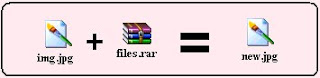
** You require WinRAR installed on your PC for this trick.
** First add your files to .rar and i.e. say files.rar
** Say you have a image as img.jpg
** Now, save files.rar and img.jpg in c:\ drive.
** Click start >> Run
** Type cmd
** Now in command prompt type cd..
** Again type cd..
** Type copy /b img.jpg + files.rar new.jpg

-------------- Please Note --------------

>> This command will concatenate the two files into the new file new.jpg
>> Don't type files.rar + img.jpg instead of img.jpg + files.rar.
>> Now, (size of new.jpg) = (size of img.jpg) + (size of files.rar) .

---------------------------
----------------


*** Mission Accomplished !!! ***

Now, we have new.jpg consisting of both img.jpg and files.rar .

Accessing the files :

** Double click new.jpg and img.jpg can be viewed.

** Now, to access files.rar :
# Right click on new.jpg >> Select Open With >> Choose Program...
# Select WinRAR archiver.
#
Now, simply Extract your files !

Subscribe

Bookmark and Share

Register